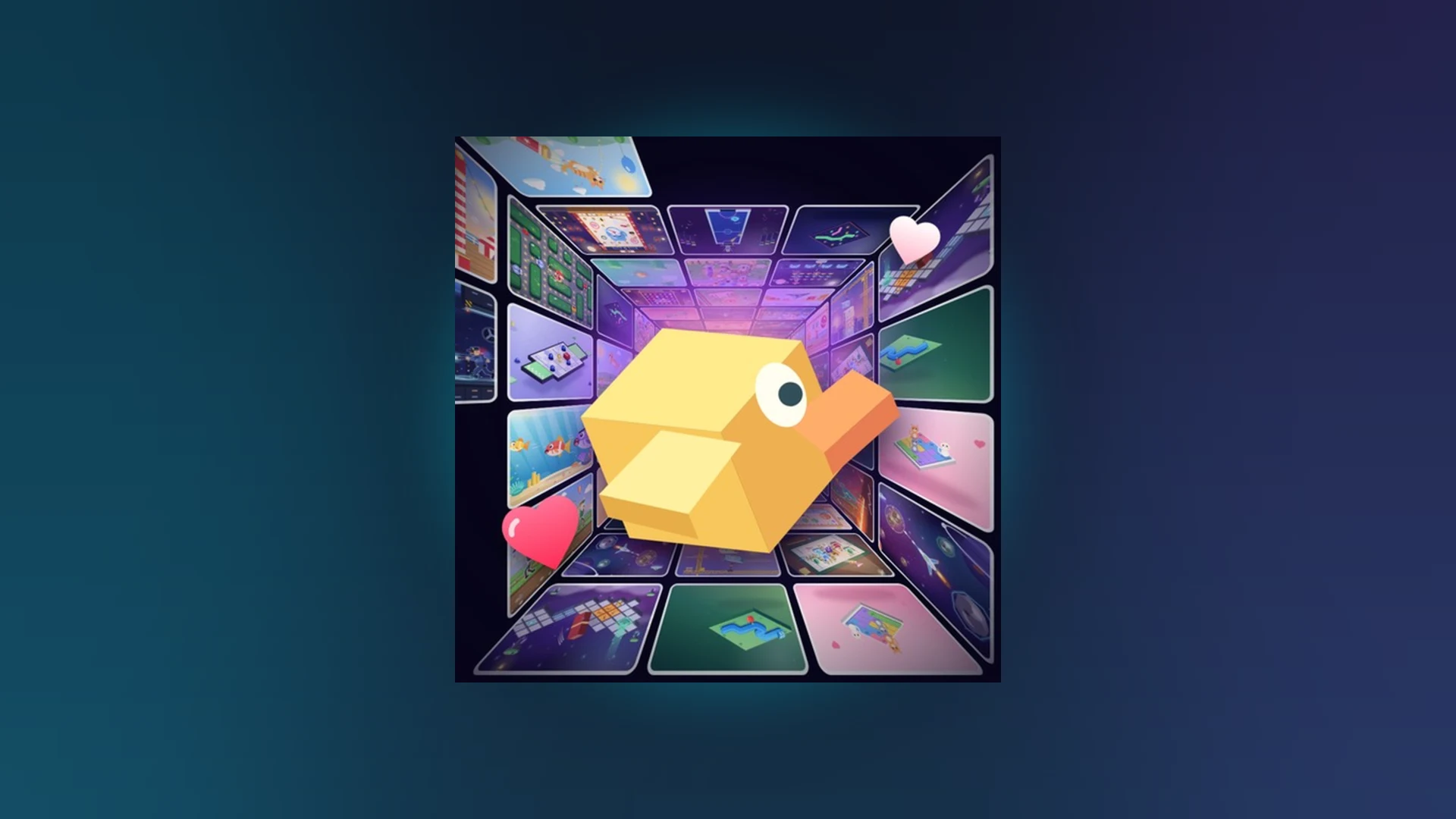
- Scroll a Game endless feed: swipe or scroll to jump instantly into the next arcade minigame
- Core loop: read the prompt, make one controlled input, and keep the streak alive
- Score driver: accuracy and reaction timing matter more than raw speed
- Revive rule: only revive a run that is near your personal best
- Leaderboards: weekly, monthly, and all-time boards reward consistent, low-mistake play
How the Scroll a Game Endless Feed Works
The Scroll a Game endless feed is the heart of this Roblox experience: instead of a single long game, you get a nonstop stream of short arcade activities. Finish one prompt-driven challenge, and the feed immediately serves the next. Your job is simple in concept — react correctly, again and again, without breaking your run.
The game sits in the Party & Casual / minigame category on Roblox, and you can find it through Roblox search or check its visibility in the Roblox charts.
The feed rewards reading before reacting. Every activity shows an on-screen prompt explaining the direction, timing, or target — scan it fully before your first input.
| Feed Element | What It Does | Player Action |
|---|---|---|
| Activity prompt | Explains the current challenge | Read it fully before moving |
| Scroll/swipe input | Advances or performs the action | Use short, controlled motions |
| Round result | Shows outcome after each activity | Review mistakes quickly |
| Next-game feed | Loads a new minigame instantly | Reset focus each transition |
Beginner Steps: Your First Run
New players should treat the first few sessions as calibration, not score hunting. Follow these steps to build clean habits from the start.
Install and open Roblox
Confirm Roblox is installed and updated on your device, sign in, and open the Scroll a Game experience from its game page.
Join the session
Press Play and let the loading finish completely before touching the screen or keyboard.
Read the on-screen prompt
Each activity explains its direction, timing, or target. Understanding the prompt beats rushing the first input.
Perform the scroll or swipe
Use mouse, trackpad, or touchscreen to match the indicated movement. Keep motions short when precision matters.
Complete and repeat
Respond to prompts until the round ends, review your result, and start the next run with a reset focus.
Most early failures come from scrolling too far or acting before the prompt is fully visible. Slow down for the first ten prompts, then build speed.
Minigame Types in the Feed
Every minigame in the endless feed fits one of four core patterns. Identifying the pattern within the first second is the skill that separates average runs from leaderboard runs.
Direction
- Match the indicated movement
- Scroll or swipe the shown way
- Watch the full prompt first
Timing
- React at the right moment
- Short, deliberate inputs
- Wait for the visual cue
Accuracy
- Keep movement controlled
- Smaller adjustments win
- Avoid overshooting targets
Endurance
- Stay consistent throughout
- Keep a steady rhythm
- Reset focus after each action
| Pattern | Objective | Key Control Habit | Difficulty |
|---|---|---|---|
| Direction | Match shown movement | One clean motion, correct way | ★★☆☆☆ |
| Timing | Act on the cue | Single deliberate tap or input | ★★★☆☆ |
| Accuracy | Hit without overshoot | Short micro-adjustments | ★★★★☆ |
| Endurance | Survive long sequences | Steady rhythm, no panic inputs | ★★★★★ |
After a few sessions you will recognize the pattern before the prompt finishes loading. That split-second head start is where high scores come from.
High Score and Leaderboard Strategy
Scores in Scroll a Game grow from completing more prompts successfully and avoiding unnecessary errors. The leaderboard system splits into weekly, monthly, and all-time boards, so consistency across many sessions beats one lucky run.
| Focus Area | Recommended Action | Common Mistake | Score Benefit |
|---|---|---|---|
| Accuracy | Short, controlled movements matching the prompt | Scrolling too far or reversing without instruction | Fewer failed interactions |
| Reaction speed | Read fast, input without hesitation | Acting before the prompt is fully visible | Better timing, fewer early errors |
| Consistency | Repeat the same reliable pattern all round | Changing technique after one success or failure | Stable long-run performance |
| Focus | Watch only the current prompt | Extra inputs between actions | Lower accidental-error rate |
| Practice | Short sessions targeting your weakest pattern | Chasing score before learning controls | Faster long-term improvement |
Track which prompt type causes most of your failures across a few sessions, then practice only that pattern. Targeted practice climbs the weekly board faster than grinding full runs.
Revive: When to Continue vs Restart
Revive is a risk-reward decision, not an automatic button. Use this decision framework before spending it.
Confirm Revive is available
When a run ends, check whether the Revive prompt is active. If not, follow the normal restart flow.
Compare with your best score
Revive is most worthwhile when the current run is near or above your personal best. Far below it? Restart instead.
Judge the run's momentum
A single recoverable mistake in a stable run justifies reviving; repeated misses do not.
Decide: preserve or refresh
Use Revive when the current score matters most; choose a fresh run when you want a cleaner attempt.
Do not close the end-of-run screen before making your Revive choice — leaving early can end the option entirely.
Before You Revive, Confirm:
- Current run is close to or above my personal best
- The failure was a single mistake, not a pattern
- My reaction quality is still stable this session
- Revive button is active on the end-of-run screen
Controls and Troubleshooting
Input behavior differs by platform. Match your device below and apply the quick fix when something stops responding.
| Platform | Entry | Basic Controls | Common Fix |
|---|---|---|---|
| Mobile phone | Roblox app, search game, press Play | Tap buttons, swipe on prompts | Release held touch, tap the window, rejoin if needed |
| Tablet | Roblox app, official page, Play | Same touch gestures, larger targets | Avoid swiping over system navigation areas |
| Computer | Game page or Roblox app, Play | Keyboard and mouse prompts | Click into the window if input is ignored |
| Controller | Console or connected pad | Directional stick, face buttons | Reconnect or reassign controller, rejoin |
Start with the least disruptive fix: confirm the official game page loads, close and reopen Roblox, and join a different server. Most feed and leaderboard delays resolve after a rejoin.
Quick fixes by symptom:
| Symptom | First Action | If It Persists |
|---|---|---|
| Cannot enter the game | Reopen Roblox, press Play again | Reinstall/update the Roblox app |
| Controls unresponsive | Tap or click inside the game window | Leave and rejoin the server |
| Leaderboard not refreshed | Wait briefly, reopen the board screen | Confirm the score saved before closing |
| Revive unavailable | Check the end-of-run screen state | Start a fresh run and report the issue |
FAQ
Q: What is the Scroll a Game endless feed?
It is the core loop of the experience: a nonstop stream of short arcade minigames where you finish one prompt-driven activity and immediately scroll or swipe into the next, building a streak for the leaderboards.
Q: How do I improve my score in the endless feed?
Focus on accuracy first — short, controlled movements that match the prompt. Then improve reaction timing and keep one consistent input pattern for the whole run. Avoid unnecessary inputs between actions.
Q: When should I use Revive?
Only when your current run is close to or above your personal best and the failure was a single recoverable mistake. If the run is well below your usual score, restarting is usually the better choice.
Q: Why do my controls sometimes stop responding?
The game window usually loses focus. Tap or click inside the active area, release any held input, and check that chat or another interface is not capturing your input. Rejoin the server if it still fails.