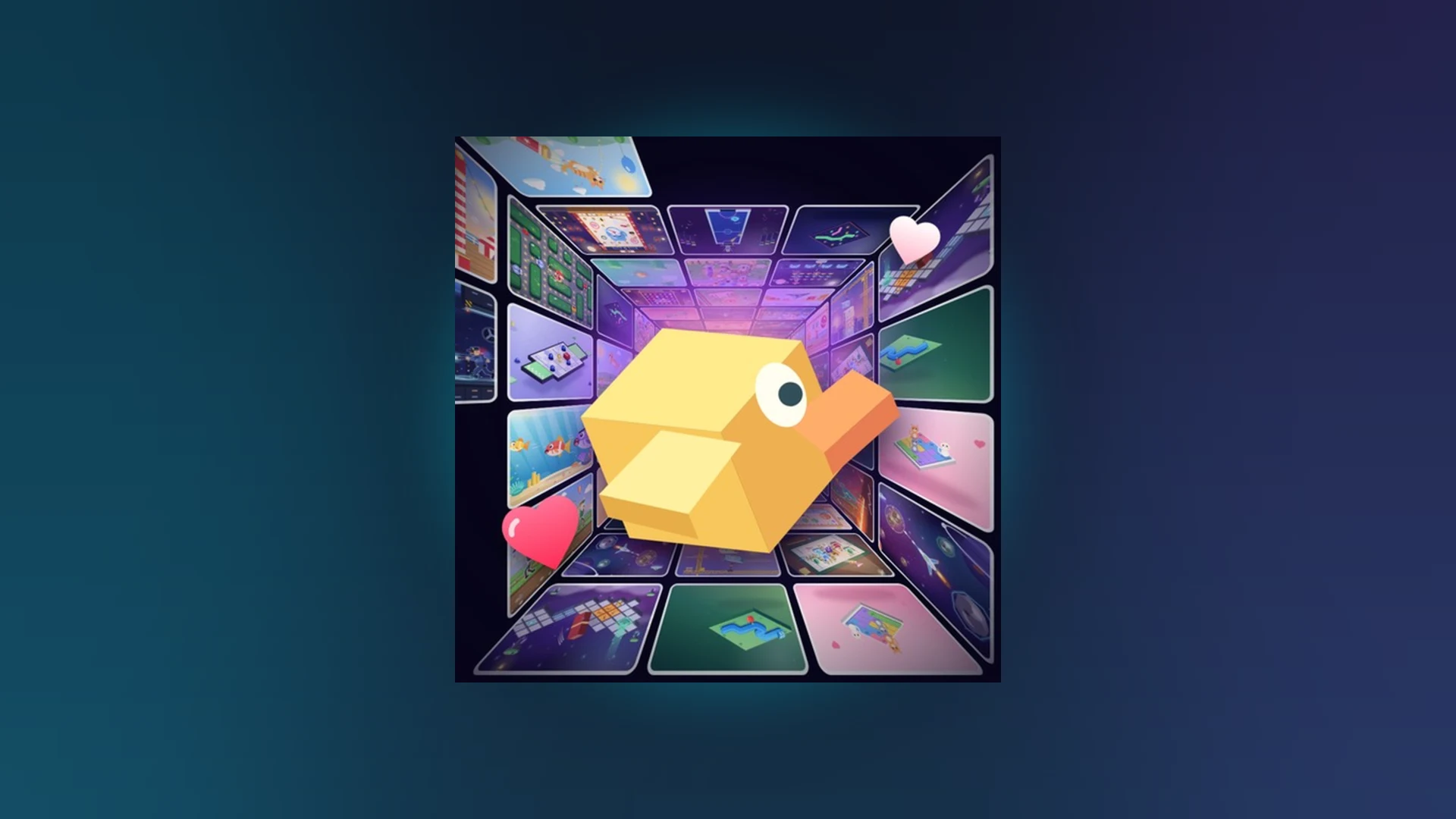
- Scroll a Game is a fast-paced Roblox minigame discovery experience playable on PC.
- PC input: Use mouse, trackpad, and keyboard prompts shown by each activity.
- Core loop: Read the prompt, perform the indicated scroll or movement, complete short rounds.
- Score strategy: Short controlled inputs and consistent timing beat raw speed.
- Codes status: No confirmed active codes exist; check the official game page for updates.
Scroll a Game on PC: Overview and Setup
Scroll a Game is a lightweight Roblox arcade experience built around one simple idea: scroll, swipe, or click your way through a nonstop feed of short playable minigames. On PC, the game runs through the standard Roblox application, and each round asks you to react to on-screen prompts using your mouse, trackpad, or keyboard. You can find the experience through the official Roblox search or the Roblox charts page.
Make sure the Roblox application is installed and updated on your computer before joining. If the experience fails to load, update Roblox first, then try joining a different server.
The table below summarizes the key facts about playing on PC:
| Item | Details |
|---|---|
| Platform | Roblox (PC app or browser launcher) |
| Genre | Party & Casual / Minigame arcade |
| Input methods | Mouse, trackpad, keyboard |
| Session length | Short, fast rounds |
| Leaderboards | Weekly, monthly, all-time |
| Code system | No confirmed active codes |
Direct game-page links can change or go offline. If a saved link returns an error, search "Scroll a Game" on Roblox to locate the current official experience page.
PC Setup: Step-by-Step
Getting into your first round takes only a few minutes. Follow this sequence for the smoothest start:
Install Roblox
Download the Roblox application for Windows or Mac from the official Roblox site, install it, and sign in to your account.
Find the Game
Search "Scroll a Game" on the Roblox discover page and open the official experience page.
Join a Session
Press Play and allow the loading screen to finish completely before clicking anywhere in the game window.
Focus the Window
Click once inside the game window so keyboard and mouse inputs register correctly instead of going to chat or another interface.
Read and React
Watch each on-screen prompt fully, then perform the indicated scroll, click, or key input to complete the activity.
Do not rush your first inputs. Understanding the prompt format matters more than speed early on—accuracy habits formed now carry into high-score runs later.
PC Controls vs Other Platforms
Scroll a Game supports multiple input methods, and behavior differs between touchscreens, mice, and controllers. The comparison below shows how PC stacks up:
| Platform | Entry | Basic Controls | Common Fix |
|---|---|---|---|
| PC | Roblox app or game page, press Play | Mouse and keyboard prompts; click to focus window | Click back into the game window; rejoin if input stays dead |
| Mobile | Roblox app, search and Play | On-screen taps and swipe gestures | Release held touch, tap the window, rejoin server |
| Tablet | Roblox app, Play | Same touch controls with larger surface | Avoid swiping over system navigation areas |
| Controller | Console or connected pad | Button and directional prompts; right stick camera | Reconnect or reassign the controller, then rejoin |
PC Strengths
- Precise mouse input
- Fast trackpad scrolling
- Stable connection for long runs
Mobile Strengths
- Natural swipe gestures
- Play anywhere
- Quick session restarts
Controller Strengths
- Comfortable for long sessions
- Consistent button mapping
- Stick-based camera control
If keyboard input is ignored on PC, the chat window or another interface likely has focus. Click inside the game window once, and if input still fails, leave and rejoin the server.
High-Score Strategy for PC Players
High scores in Scroll a Game come from completing more prompts successfully, not from moving faster. Each focus area below builds longer, cleaner runs:
| Focus Area | Recommended Action | Common Mistake | Score Benefit |
|---|---|---|---|
| Accuracy | Short, controlled movements matching the prompt | Scrolling too far or changing direction blindly | Fewer failed interactions |
| Reaction speed | Read the prompt quickly, input without hesitation | Acting before the instruction is fully visible | Better timing, fewer early errors |
| Consistency | Repeat the same reliable movement pattern | Changing technique after one result | Stable performance in long runs |
| Focus | Watch only the current prompt | Looking away between actions | Fewer accidental errors |
| Practice | Play short rounds, find your weakest prompt type | Chasing score before learning controls | Faster long-term improvement |
Most activities fall into four patterns: Direction (match the indicated movement), Timing (act on the visual cue), Accuracy (small precise inputs), and Endurance (hold a steady rhythm). Identify the category first, then choose your input style.
When to Use Revive
Revive is a risk-reward decision, not an automatic choice:
- Use Revive when your current run is at or near your personal best and still feels stable.
- Restart instead when the run is far below your usual score or plagued by repeated misses.
- Check availability on the end-of-run screen before closing it—dismiss the result too early and the option is gone.
High-Score Run Checklist:
- Identify each prompt's category before inputting
- Keep movements short and controlled
- Maintain one consistent technique per session
- Compare current score to personal best before Revive
- Review which prompt type caused the most misses
Troubleshooting on PC
| Problem | Likely Cause | Fix |
|---|---|---|
| Game will not load | Outdated Roblox or bad server | Update Roblox, reopen the page, try a new server |
| Mouse or keyboard dead | Window lost focus | Click inside the game window; rejoin if needed |
| Leaderboard not refreshing | Result still processing | Wait briefly, rejoin the server, confirm the score saved |
| Revive unavailable | Prompt not reached or screen closed early | Let the run end fully and choose before dismissing |
| Odd status messages | Version or feature change | Restart Roblox, check the official game page |
Always begin with the least disruptive fix: confirm the official game page is reachable, rejoin the server, and verify Roblox is current. Only then investigate account, device, or feature-level issues.
FAQ
Q: Can I play Scroll a Game on PC for free through Roblox?
Yes. Scroll a Game is a Roblox experience, and Roblox itself is free to install on PC. Join through the official game page found via Roblox search.
Q: Are there active Scroll a Game codes right now?
No confirmed active codes exist in the current public information. If the game later adds a redemption feature, look for a Codes, Gift, or Settings button after joining, and rely on official announcements rather than unverified community posts.
Q: Is a controller better than a mouse for Scroll a Game on PC?
Not necessarily. Mouse and trackpad input tends to offer finer control for scroll and precision prompts, while controllers work well for directional and button-based activities. Choose based on the prompt types you handle best.
Q: How do I improve my Scroll a Game leaderboard ranking?
Focus on accuracy and consistency first. Use short controlled inputs, read each prompt fully before moving, and practice the prompt categories that cause the most mistakes. Weekly, monthly, and all-time leaderboards reward stable long-run performance.