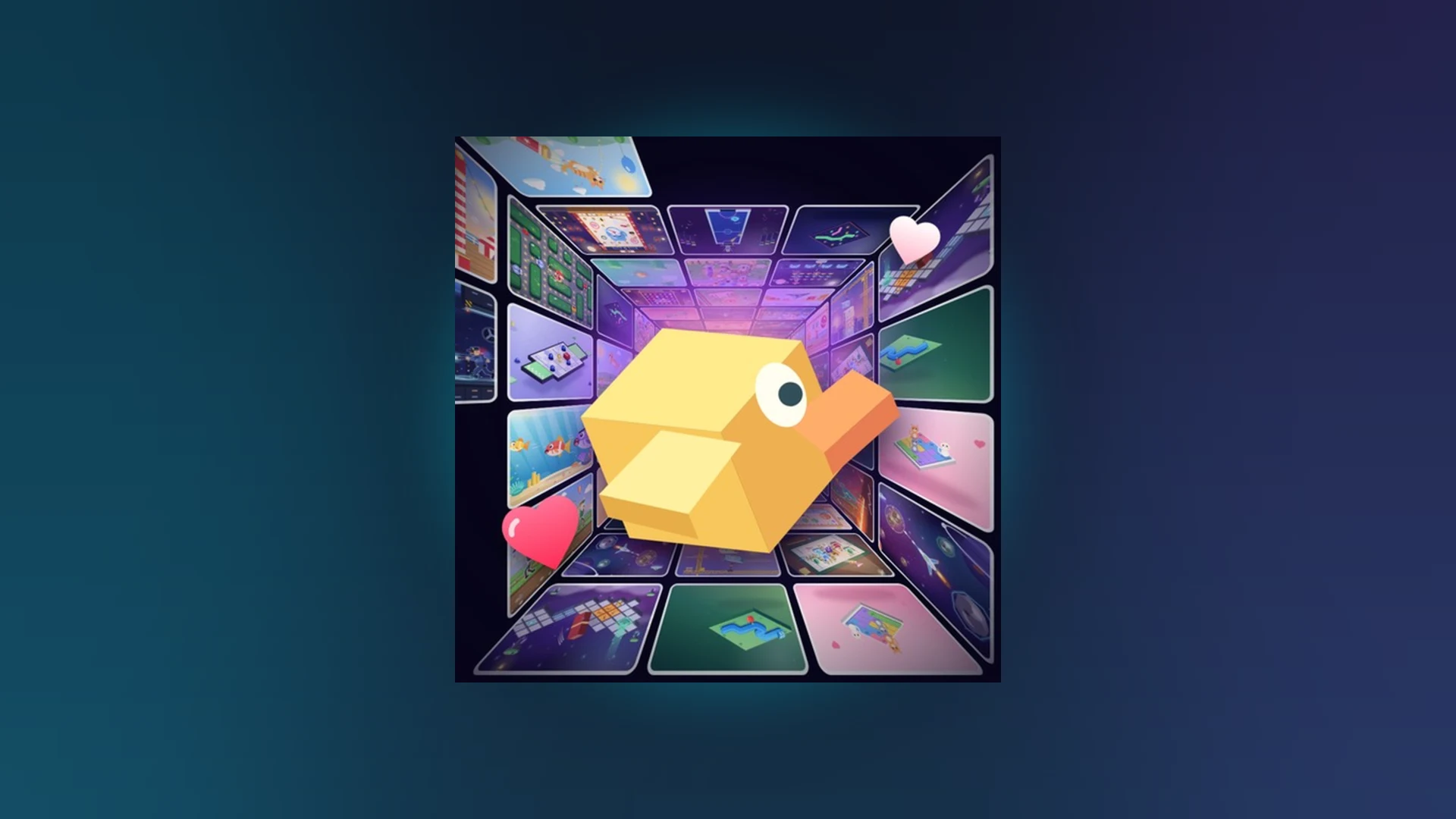
- Scroll a Game on phone runs through the Roblox mobile app with touch and swipe controls
- Scrolling is the core input: swipe up to move to the next minigame quickly
- Short, controlled swipes beat fast random scrolling for accuracy prompts
- Rejoin the server if touch input stops responding during a round
- Revive wisely: compare your current score with your personal best before using it
Playing Scroll a Game on Your Phone
Scroll a Game is a fast-paced Roblox minigame discovery experience, and the phone is one of the most natural places to play it. The entire game is built around a scrolling or swiping motion, which maps directly to touchscreen input. You open the Roblox app, join the experience from the official Roblox search page, and respond to short arcade-style prompts using taps and swipes.
The core loop is simple: a prompt appears, you perform the indicated movement, and the game moves you forward to the next activity. Because each activity is short, phone players can complete full rounds in quick sessions without needing a keyboard or controller.
Touch Input
- Taps for button prompts
- Swipes for direction prompts
- One-finger gestures for most activities
Short Sessions
- Quick arcade rounds
- Easy to start and stop
- No long setup required
Leaderboards
- Weekly, monthly, all-time boards
- Track your best scores
- Compete with friends
Play in a stable position where your thumb can reach the full screen comfortably. Keep your finger movements inside the active game area and avoid swiping over system navigation gestures at the bottom of the screen.
Phone Controls Reference
Touch behavior in Roblox can differ slightly between devices and screen sizes. Use this reference to identify the input method each situation requires, and apply the matching fix when something stops responding.
| Situation | Input Method | Recommended Action |
|---|---|---|
| Direction prompt | Swipe in indicated direction | Watch the full prompt, then swipe once cleanly |
| Timing prompt | Short tap | Wait for the visual cue, tap deliberately |
| Accuracy prompt | Small swipe adjustments | Shorten each movement, avoid overshooting |
| Camera movement | One-finger drag | Drag when camera control is enabled |
| Button selection | Tap the on-screen button | Tap directly inside the button area |
If taps or swipes stop working, release any held touch, tap the game window again to restore focus, and rejoin the server if input is still unresponsive. Also confirm no system overlay or notification shade is capturing your touch.
Getting Started: Phone Setup Steps
Follow these steps to go from a fresh device to your first completed round on mobile.
Install the Roblox app
Install Roblox from your device's app store, sign in to your account, and confirm the app is running the current version. You can also review Roblox's official install and play instructions for platform-specific help.
Find the official game page
Open Roblox, search for Scroll a Game, and open the official experience page before pressing Play. This avoids unofficial clones with similar names.
Read the on-screen prompt
Before your first move, read the instruction shown by the current activity. Prompts explain the direction, timing, or target of the interaction. Understanding the prompt matters more than speed in round one.
Use controlled swipes
Use short, deliberate swipes and taps that match the prompt. Avoid long sweeping gestures when the activity rewards precision.
Complete the round
Keep responding to prompts until the round ends, then review the result screen. Consistency beats raw speed for your first sessions.
Aim to finish one full round without missing a prompt. Once the swipe rhythm feels natural, move on to score-focused strategies.
Mobile High-Score Strategies
High scores come from completing more prompts successfully and avoiding unnecessary errors. Phone players face a specific challenge: touchscreens make it easy to over-scroll, so control is the top priority over raw speed.
| Focus Area | Recommended Action | Common Phone Mistake | Score Benefit |
|---|---|---|---|
| Accuracy | Short swipes matching the prompt | Over-scrolling or reversing direction | Fewer failed interactions |
| Reaction speed | Read the prompt, then swipe without hesitation | Swiping before the instruction fully appears | Better timing, fewer early errors |
| Consistency | Repeat the same reliable swipe pattern | Changing technique after one miss | Stable performance in long runs |
| Focus | Watch the current prompt only | Making extra inputs between tasks | Lower chance of accidental errors |
| Practice | Play short rounds, find your weakest prompt type | Chasing high scores before learning controls | Faster long-term improvement |
When a run ends and the Revive option appears, compare your current score with your personal best. If the run is close to or above your best and was otherwise stable, reviving preserves real progress. If the run was shaky, a fresh start is usually the better choice.
Mobile Session Goals:
- Complete one full round without a missed prompt
- Identify the prompt type that causes the most mistakes
- Beat your previous best score once per session
- Check the leaderboard after each strong run
Phone Troubleshooting
Most mobile issues fall into a few recognizable categories. Start with the least disruptive fix: rejoin the server and confirm Roblox is updated, then isolate whether the issue affects your device, the server, or a game feature.
| Problem | Likely Cause | Fix |
|---|---|---|
| Play button does not load the game | Outdated app or server issue | Close and reopen Roblox, update the app, try a new server |
| Swipes have no effect | Lost window focus or held touch | Release the touch, tap the game window, rejoin if needed |
| Score not on the leaderboard | Processing delay | Wait briefly, rejoin the server, confirm the score was recorded |
| Revive option missing | Run ended before Revive point | Confirm the run reached the Revive stage, restart a new run |
| Game closes mid-round | Device performance | Close background apps, lower graphics settings, rejoin |
Only join the experience through the official Roblox game page or search. If a link returns an error, use the Roblox discover search to locate the current official listing rather than third-party mirrors.
FAQ
Q: Can I play Scroll a Game on a phone without a controller?
Yes. Scroll a Game is fully playable with touch controls on phones. Taps handle button prompts and swipes handle direction and scrolling prompts, so no external controller is required.
Q: Why do my swipes sometimes not register in Scroll a Game on mobile?
Touch input usually stops responding when the game window loses focus, a touch is still held, or a system overlay captures the gesture. Release the touch, tap back into the game window, and rejoin the server if the problem continues.
Q: Is the phone version different from the PC version of Scroll a Game?
The activities and scoring are the same, but the input method differs. Phones use taps and swipes, while computers use mouse, trackpad, and keyboard prompts. Some players find short swipes more precise than trackpad scrolling.
Q: How do I improve my Scroll a Game phone score fastest?
Focus on accuracy first: use short, controlled swipes that match each prompt exactly. Once mistakes are rare, work on reaction timing and keep a consistent swipe pattern throughout longer runs.