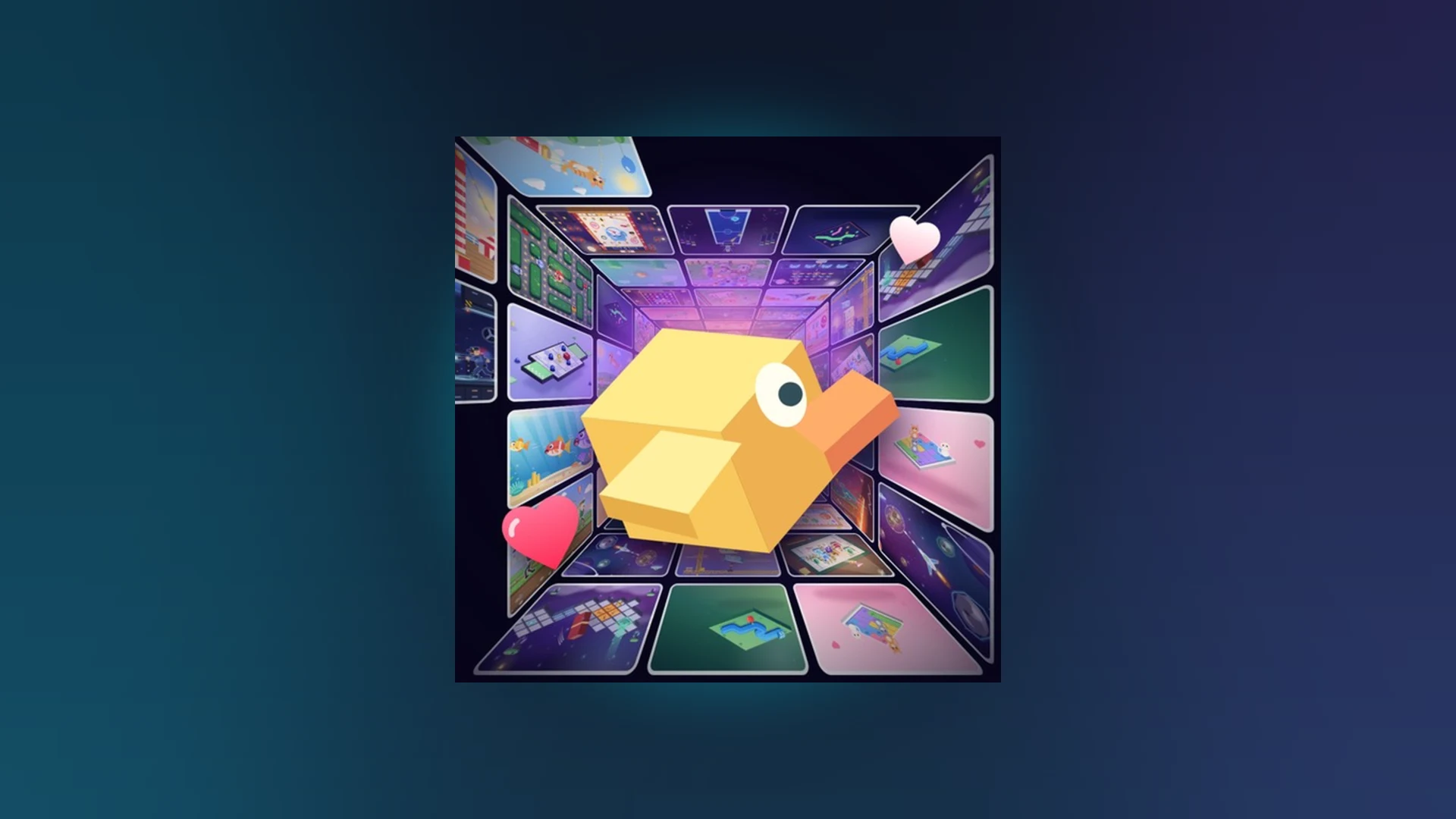
- Scroll a Game is a fast-paced Roblox minigame discovery experience you can play on PlayStation consoles via the Roblox app.
- Setup: Install Roblox from the PlayStation Store, sign in, and search for the game by name.
- Controls: Directional pad and face buttons handle scroll prompts; the right stick manages the camera.
- High scores: Short, deliberate inputs beat fast, sloppy ones in every minigame.
- Codes: No confirmed public codes exist right now — always verify on the official game page.
Scroll a Game on PlayStation: What to Expect
Scroll a Game is a lightweight Roblox arcade experience built around one simple hook: swipe or scroll upward, and instantly drop into the next playable minigame. Because Roblox runs natively on PlayStation 4 and PlayStation 5, you can access the game directly from your console without a PC or phone — the on-screen scroll prompts simply map to controller inputs instead of touch gestures.
The game falls into the Party & Casual genre and features weekly, monthly, and all-time leaderboards, so console players compete on the same boards as mobile and PC users. Cross-platform play means your scores, saved favorites, and friend list carry across every device linked to your Roblox account.
PlayStation controllers offer precise directional input and consistent response times, which helps in accuracy-based minigames where touchscreen swipes often overshoot the target.
| Feature | PlayStation Availability | Notes |
|---|---|---|
| Roblox app | PS4 and PS5 | Free download from PlayStation Store |
| Scroll prompts | Mapped to D-pad and face buttons | On-screen prompts indicate the required input |
| Camera control | Right stick | Supported when the experience enables camera input |
| Leaderboards | Cross-platform | Weekly, monthly, and all-time boards |
| Friends and saves | Account-linked | Shared across all devices on one Roblox account |
You can verify the game's current status and find the official entry point through the Roblox search page for Scroll a Game.
Step-by-Step: Playing Scroll a Game on PS4 and PS5
Getting into the game on a PlayStation console takes only a few minutes. Follow this sequence from the console home screen to your first completed round.
Install the Roblox app
Open the PlayStation Store on your PS4 or PS5, search for Roblox, and install the free app. Make sure your console firmware is up to date before downloading.
Sign in to your Roblox account
Launch Roblox and sign in with your existing account, or create one directly on the console. Using an existing account preserves your friends list, favorites, and leaderboard history.
Search for Scroll a Game
Use the in-app search function and type the exact game name. Select the official experience page and confirm it before pressing Play to avoid unofficial copies.
Learn the controller prompts
Read each on-screen prompt before acting. Direction prompts map to the D-pad or left stick, and action prompts map to face buttons. Accuracy matters more than raw speed in your first rounds.
Complete your first round
Respond to prompts consistently until the round ends, then check your result screen. Your score posts automatically to the active leaderboard cycle.
If button input is ignored after joining, check that your controller is assigned to the active player profile, then leave and rejoin the experience. A disconnected or unassigned controller is the most common cause of unresponsive inputs.
Controller Controls by Platform Comparison
While PlayStation is a strong option, Scroll a Game supports several input methods. Here is how each platform handles the core interactions.
| Platform | Entry Method | Core Input | Camera Control | Common Fix |
|---|---|---|---|---|
| PlayStation (PS4/PS5) | Roblox app, search game name | D-pad, left stick, face buttons | Right stick | Reassign controller, rejoin server |
| Mobile phone | Roblox app | Tap and swipe gestures | One-finger drag | Release held touch, tap game window |
| Tablet | Roblox app | Tap and swipe, larger targets | One-finger drag | Avoid system navigation areas |
| Computer | Roblox app or browser | Keyboard and mouse | Mouse movement | Click game window to restore focus |
PlayStation Strengths
- Precise directional inputs from D-pad and stick
- Stable latency with wired or paired DualSense
- Comfortable for long leaderboard grinds
Mobile Strengths
- Natural swipe gestures match the scroll theme
- Play anywhere without a console
- Fast re-entry into new minigames
Whichever platform you choose, short and controlled inputs consistently outperform long, fast ones. Most failed prompts come from overshooting the required direction, not from reacting too slowly.
High Score Strategy and Revive Decisions
Climbing the Scroll a Game leaderboards from a console comes down to reducing mistakes across long runs. Every completed prompt extends your run; every miss risks ending it.
| Focus Area | Recommended Action | Common Mistake | Score Benefit |
|---|---|---|---|
| Accuracy | Use short, deliberate directional inputs | Scrolling too far or reversing without a prompt | Fewer failed interactions |
| Reaction speed | Read the full prompt, then act immediately | Acting before the instruction finishes displaying | Better timing, fewer early errors |
| Consistency | Repeat the same input pattern every round | Changing technique after one miss | Stable long-run performance |
| Focus | Watch only the current prompt between actions | Making extra inputs after completing a task | Lower chance of accidental errors |
| Practice | Identify which prompt type causes the most misses | Chasing score before learning controls | Faster long-term improvement |
When a run ends, the Revive option lets you continue instead of restarting — but treat it as a calculated decision, not an automatic choice.
Confirm Revive is available
Check whether the Revive prompt appears on the end-of-run screen. If the option is greyed out or missing, start a fresh run instead.
Compare with your best score
Revive is most valuable when your current run is at or near your personal best. A run far below your average usually deserves a clean restart.
Judge your momentum
A single recoverable mistake in an otherwise stable run justifies a revive; repeated misses do not.
Decide and commit
Preserve the run when the score matters most, or refresh when you want a cleaner attempt with better rhythm.
Scores can take a moment to process after a run. Confirm your result has recorded on the result screen before closing Roblox, and rejoin the server if the leaderboard does not refresh.
PlayStation Session Goals:
- Install Roblox and join Scroll a Game on PS4 or PS5
- Complete ten clean rounds without input errors
- Set a personal best on the weekly leaderboard
- Make one correct Revive decision based on run value
- Identify your weakest prompt type and practice it
Troubleshooting on PlayStation
Console issues are usually quick to isolate. Start with the least disruptive fix and work down the list.
| Problem | Likely Cause | Fix |
|---|---|---|
| Game will not load | Outdated app or server issue | Restart Roblox, update the app, join a new server |
| Buttons unresponsive | Controller not assigned | Reassign controller in the PS quick menu, rejoin |
| Score not on leaderboard | Processing delay | Wait, confirm result screen, rejoin server |
| Revive option missing | Run did not reach Revive point | Start a new run; do not close the result screen early |
| Wrong game joined | Unofficial copy with a similar name | Verify the official experience page before playing |
No confirmed official codes are currently listed for Scroll a Game. Avoid community posts promising free rewards, and rely on the official Roblox game page and its linked announcements for any code releases.
FAQ
Q: Can you play Scroll a Game on PlayStation?
Yes. Scroll a Game runs on PS4 and PS5 through the free Roblox app available on the PlayStation Store. Search for the game by name inside the app, open the official experience page, and press Play.
Q: Do PlayStation players share leaderboards with mobile and PC players?
Yes. Leaderboards in Scroll a Game are cross-platform, so scores earned on a console appear on the same weekly, monthly, and all-time boards as mobile and PC results tied to the same game.
Q: Are there any Scroll a Game codes to redeem?
There are no confirmed active codes in the current game information. If a redemption feature exists, it would appear as a Codes, Gift, or Settings button after joining. Check the official Roblox game page for verified announcements.
Q: What is the best controller technique for high scores?
Use short, deliberate directional inputs instead of fast, exaggerated ones. Read each prompt fully before acting, keep a consistent rhythm across rounds, and use Revive only when your current run matches or approaches your personal best.