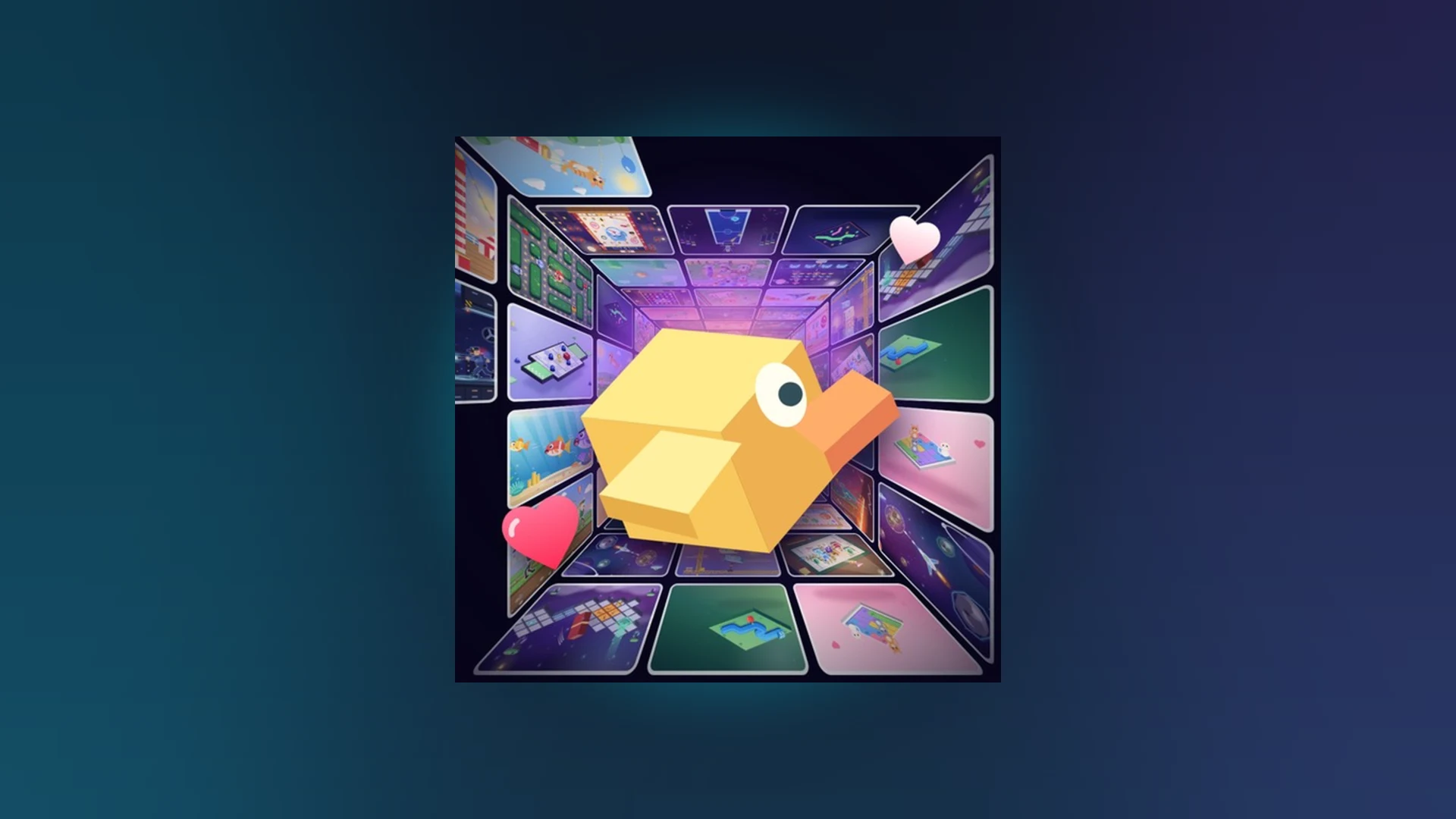
- Scroll a Game is a fast-paced Roblox minigame discovery experience built around scrolling
- Core loop: swipe or scroll to jump between short arcade activities, react to prompts, score points
- First goal: read the on-screen prompt fully before your first input in every round
- Controls: works on PC, mobile, tablet, and controller with different input styles
- Scoring: accuracy and consistency matter more than raw speed for beginners
What Is Scroll a Game?
Scroll a Game is a lightweight Roblox party and casual experience where the main mechanic is exactly what the name says: scroll. Instead of a long tutorial or a complex menu, the game drops you into a feed of short, playable arcade minigames. You swipe or scroll upward to move quickly into the next activity, respond to the prompt it gives you, and keep your run alive.
Because rounds are short, the game rewards fast reading and clean input. Each activity explains what it wants on screen, and your job is to execute the movement, timing, or accuracy it demands before the round ends. Scores feed into weekly, monthly, and all-time leaderboards, so even your first session can start building a competitive record.
Here is how the four core activity categories typically work:
| Category | Objective | Typical Control | Winning Tip |
|---|---|---|---|
| Direction | Match the movement shown by the prompt | Scroll, swipe, mouse, or trackpad motion | Watch the full prompt before moving |
| Timing | Act when the activity signals readiness | Short, deliberate input | Wait for the visual cue |
| Accuracy | Complete the interaction without overshooting | Small, careful adjustments | Shorten each movement |
| Endurance | Keep responding without losing focus | Repeated input pattern | Use a steady rhythm |
The single biggest beginner mistake is acting before the instruction is fully visible. In your first few rounds, prioritize understanding the prompt over speed. Speed comes naturally once you recognize the patterns.
Step-by-Step: Your First Session
Follow these steps to get from a fresh device into a completed round. The whole sequence usually takes less than ten minutes.
Install and open Roblox
Install Roblox on your supported device, sign in to your account, and make sure the application is updated to the current version. If the experience does not start, an outdated installer is the most common cause.
Join the game
Search for Scroll a Game on Roblox, open the official experience page, and press Play. Wait for the loading process to finish before touching the screen or clicking anywhere.
Read the on-screen prompt
Check the instructions shown in the current activity before making any move. Prompts explain the direction, timing, or target of the interaction you need to perform.
Use the scrolling or swiping control
Use your mouse, trackpad, touchscreen, or supported controller input to perform the required movement. Keep motions short and controlled when accuracy matters.
Complete the round
Continue responding to prompts until the round ends, then review the result screen. Note which prompt types caused mistakes so you know what to practice next.
Do not tap or click repeatedly during loading. Extra inputs made before the session finishes loading can be misread once the round begins, causing an immediate mistake.
Controls by Platform
Input behavior differs between devices, and many "the game is broken" reports are actually focus or input-method issues. Use this table to match your setup.
| Platform | Entry Method | Basic Controls | Camera / Input | Common Fix |
|---|---|---|---|---|
| Mobile phone | Roblox app, search, Play | Tap buttons, swipe on prompts | Drag screen for camera | Release held touch, tap game window, rejoin if needed |
| Tablet | Roblox app, official page, Play | Same touch style, larger targets | One-finger camera gestures | Avoid swiping over system navigation areas |
| Computer | Game page or Roblox app | Keyboard and mouse prompts | Mouse for camera | Click back into window if input is ignored |
| Controller | Console or connected pad | Button prompts, D-pad, sticks | Right stick for camera | Reconnect or reassign the controller |
On PC, keyboard input is often ignored because chat or another interface has focus. Click inside the game window first, then press keys. If controls stay dead, leave and rejoin the server.
Beginner Mistakes and How to Fix Them
Most early losses come from a handful of fixable habits. Compare your play against these common errors and the recommended replacement behavior.
| Mistake | Why It Fails | Fix | Score Benefit |
|---|---|---|---|
| Scrolling too far | Overshooting the target counts as a miss | Use short, controlled movements | Fewer failed interactions |
| Acting before reading | Wrong input wastes the prompt | Wait until the instruction is fully visible | Better timing |
| Changing technique mid-run | Breaks muscle memory | Repeat one reliable movement pattern | More stable runs |
| Looking away between actions | Accidental inputs and missed cues | Keep eyes on the current prompt | Fewer random errors |
| Chasing score too early | Weak fundamentals cap results | Play short rounds, find your weak prompt type | Faster long-term growth |
Accuracy First
- Short movements beat long swipes
- Match exactly what the prompt shows
- Ideal for precision activities
Timing First
- Wait for the cue before input
- One deliberate tap, not a hold
- Ideal for reaction activities
Rhythm First
- Steady pacing across the whole round
- Reset focus after each success
- Ideal for endurance activities
Play several short sessions and write down which prompt category causes the most mistakes. Focused practice on your weakest category improves your overall runs faster than playing more random rounds.
Troubleshooting and Revive Basics
When something goes wrong, start with the least disruptive fix: confirm you are on the official game page, rejoin the server, and check that Roblox is current.
| Problem | Likely Cause | First Steps |
|---|---|---|
| Cannot enter the game | Outdated app or bad server | Restart Roblox, reopen official page, try a new server |
| Input not responding | Lost window focus or held input | Tap or click the game window, release held keys, rejoin |
| Leaderboard not refreshed | Processing delay | Wait briefly, rejoin, confirm the score recorded |
| Revive unavailable | Run did not reach the offer point | Check the end-of-run screen, do not close it early |
Revive is a risk-reward decision, not an automatic reset. It is most worthwhile when your current run is close to or above your personal best and still feels stable. If the run is far below your usual result, a fresh start is usually the better choice.
First Session Goals:
- Join Scroll a Game from the official Roblox page
- Complete one full round without skipping the prompt
- Identify your weakest prompt category
- Check the weekly leaderboard after your run
FAQ
Q: Is Scroll a Game free to play?
Scroll a Game is a Roblox experience, so it is accessed through the Roblox platform, which is free to install and use. A Roblox account is required to join and save your progress.
Q: Do I need a specific device to play?
No. The experience supports mobile phones, tablets, computers, and controllers. Touchscreen players swipe and tap, while PC players use mouse and keyboard prompts shown on screen.
Q: How do I improve my score quickly as a beginner?
Focus on accuracy and consistency before speed. Read each prompt fully, use short controlled movements, and practice the specific prompt category where you make the most mistakes.
Q: What should I do if the controls stop responding?
Tap or click inside the game window to restore focus, release any held input, and make sure chat or another interface is not capturing your keys. If input remains dead, leave and rejoin the server.