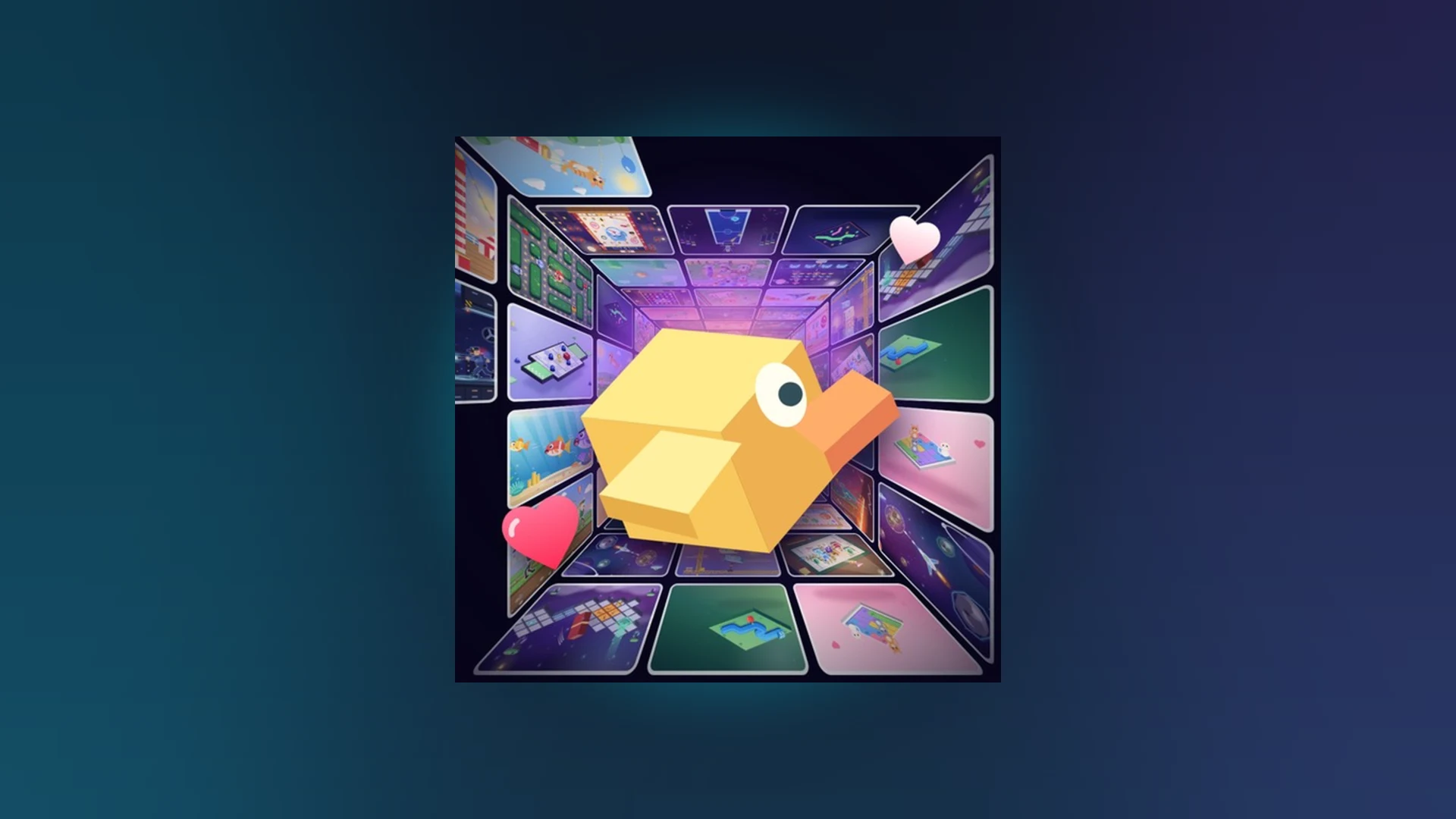
- Scroll a Game is a fast-paced Roblox minigame discovery experience built around scrolling and swiping.
- Core loop: read the on-screen prompt, perform the indicated movement, and keep the streak alive.
- High scores come from accuracy and consistency, not raw scrolling speed.
- Revive is a risk-reward decision — use it only when your current run justifies the cost.
- Cross-platform: works on mobile, tablet, PC, and controller, but input behavior differs per device.
Scroll a Game Overview and Core Gameplay
Scroll a Game is a lightweight multiplayer arcade experience on Roblox, categorized under Party & Casual / Minigame. Its central hook is simple: you scroll or swipe through a nonstop feed of short, playable minigames, reacting to on-screen instructions as quickly and accurately as possible. Sessions are designed to be short, so the skill ceiling is built around reaction time, input precision, and sustained focus rather than long-form progression.
Each activity presents a prompt — a direction to follow, a timing window to hit, or a target to reach — and your job is to respond with the correct input before the round moves on. Because the challenge rotates constantly, the most valuable skill is pattern recognition: identifying what the current prompt is asking within the first second.
The game has appeared in Roblox's popular charts, and it supports weekly, monthly, and all-time leaderboards, giving competitive players a reason to chase longer, cleaner runs.
Direction Prompts
- Match the indicated movement shown on screen
- Use scroll, swipe, mouse, or touch input
- Watch the full prompt before moving
Timing Prompts
- Act when the activity signals readiness
- Use short, deliberate inputs
- Prioritize timing over speed
Accuracy Prompts
- Complete the interaction without overshooting
- Make smaller adjustments
- Reduce movement length when precision is rewarded
Endurance Prompts
- Maintain consistent performance across long runs
- Keep a steady rhythm
- Reset focus after every successful action
Random scrolling loses rounds. In your first sessions, spend each round classifying the prompt type — direction, timing, accuracy, or endurance — before committing to an input. Once recognition becomes automatic, your reaction speed improves without extra effort.
Controls by Platform
Roblox input behavior varies across devices, and Scroll a Game's swipe-and-scroll design makes platform choice surprisingly important. The tables below break down how to enter the game and handle input on each platform, plus the fastest fix when something stops responding.
| Platform | How to Enter | Basic Controls | Camera / Input | Quick Fix |
|---|---|---|---|---|
| Mobile phone | Open Roblox app, search Scroll a Game, press Play | Tap buttons and swipe where prompted | Drag on screen for camera; keep fingers inside the game area | Release held touch, tap the window again, rejoin if needed |
| Tablet | Launch Roblox, open the game page, press Play | Same touch interface with more screen space | One-finger camera gestures; avoid system navigation areas | Rotate device if supported, check on-screen controls reappear |
| Computer | Open game page or Roblox app, select Play | Keyboard and mouse prompts; click window before typing | Mouse for camera; check chat isn't stealing keyboard focus | Click back into window, rejoin if still unresponsive |
| Controller | Start Roblox on console or connect a controller | Follow on-screen button prompts | Right stick for camera; confirm controller is assigned | Reconnect or reassign controller, then rejoin |
| Common Input Problem | Likely Cause | First Action |
|---|---|---|
| Taps or clicks ignored | Game window lost focus | Tap or click inside the active window |
| Keyboard input dead | Chat or overlay capturing keys | Close chat, click the game window |
| Swipe does nothing | Finger outside active game area | Keep input inside the game region |
| Controller unresponsive | Controller not assigned to player | Reassign in Roblox settings, rejoin |
The core mechanic depends on swipe precision. On phones, avoid swiping near system gesture areas at the screen edges — those swipes can trigger your OS instead of the game and cost you the round.
Beginner Walkthrough: Your First Round
New players consistently stumble in the same places: joining with an outdated Roblox client, rushing the first prompt, and over-scrolling. Follow these steps to get a clean first session.
Install and open Roblox
Install Roblox on your supported device, sign in, and open the Scroll a Game experience from its official Roblox game page. If the experience fails to start, update the Roblox application first.
Join the game
Select the Play button on the experience page and let the session load fully before touching the screen. Interrupting the load can cause input issues later.
Read the on-screen prompt
Check the instructions in the current activity before moving. Prompts explain the direction, timing, or target of the interaction. Understanding the prompt matters more than speed in your first rounds.
Perform the indicated movement
Use the mouse, trackpad, touchscreen, or controller input the prompt requires. Use short, controlled movements when accuracy matters.
Complete the round and review
Keep responding until the round ends, then check your result. Note which prompt types caused mistakes so your practice targets the right weakness.
Do not chase score in session one. Aim instead to correctly classify every prompt you encounter. Accuracy first, speed second — the score follows naturally.
High Score Strategy and Revive Decisions
High scores come from completing more prompts successfully over longer runs. That means the biggest score killers are not slow reactions — they are avoidable errors. The table below maps the highest-impact improvements.
| Focus Area | Recommended Action | Common Mistake | Score Benefit |
|---|---|---|---|
| Accuracy | Short, controlled movements matching the prompt | Scrolling too far or changing direction without instruction | Fewer failed interactions, more completed actions |
| Reaction speed | Read the prompt fast, input without hesitation | Acting before the instruction fully appears | Better timing, fewer early mistakes |
| Consistency | Repeat one reliable movement pattern all round | Changing technique after a single result | Stable performance in longer runs |
| Focus | Watch the current prompt, ignore distractions | Extra inputs after completing a task | Lower chance of accidental errors |
| Practice routine | Play short rounds, find your weakest prompt type | Score-chasing before learning controls | Faster long-term improvement |
Revive is the game's built-in risk-reward decision point. Treat it as a strategic choice, never an automatic reset:
Confirm Revive is available
When a run ends, check whether the Revive option is active. If it is unavailable, proceed with a normal restart.
Compare against your best score
Revive is worthwhile when your current run is close to or above your personal best. If it is far below your usual result, a fresh start is usually better.
Judge your momentum
One recoverable mistake inside an otherwise stable run is a strong reason to revive. Repeated misses suggest the run will not improve even if continued.
Decide: preserve or refresh
Use Revive when preserving the current score matters more. Restart when you want a cleaner attempt.
Weekly, monthly, and all-time leaderboards may refresh at different rates. If a new score does not appear immediately, wait briefly and rejoin the server before assuming it was not recorded.
High Score Checklist:
- Classify every prompt type within one second
- Complete a full round with zero overshoot errors
- Set a personal best without using Revive
- Beat your weekly leaderboard placement
Codes Status and Troubleshooting
There are currently no confirmed active Scroll a Game codes in the available official information. If the game does not display a Codes, Gift, or Settings button with an input field after joining, the redemption feature may not be active. Do not trust random community-posted codes — check the official Roblox game page and official announcements for newly released codes.
For other common issues, start with the least disruptive fix: confirm the official game page, rejoin the server, and make sure Roblox is running the current version.
| Problem | Symptoms | Recommended Fix |
|---|---|---|
| Cannot enter the game | Play button fails, endless loading | Restart Roblox, reopen the game page, try a new server |
| Controls unresponsive | Taps, keys, or buttons ignored | Restore window focus, release held inputs, rejoin |
| Leaderboard stale | New score not visible | Wait for processing, rejoin, confirm score was recorded |
| Revive unavailable | Option missing or inactive | Confirm run reached the Revive point; do not close the result screen early |
| Abnormal status message | Odd code or feature state | Restart Roblox, rejoin, test on another device to isolate the cause |
FAQ
Q: What is Scroll a Game?
Scroll a Game is a fast-paced Roblox minigame experience where you scroll or swipe through a continuous feed of short arcade activities, reacting to on-screen prompts. It features weekly, monthly, and all-time leaderboards for competitive players.
Q: Are there active Scroll a Game codes right now?
No confirmed active codes exist in the current official information. Check the official Roblox game page and announcements for new releases, and look for a Codes, Gift, or Settings button in-game to see whether redemption is available.
Q: How do I improve my Scroll a Game high score?
Focus on accuracy first: use short, controlled movements, read each prompt fully before acting, and keep one consistent input pattern. Avoid unnecessary inputs between actions, since accidental errors end runs faster than slow reactions.
Q: When should I use Revive?
Use Revive when your current run is close to or above your personal best and the run was otherwise stable. If you are well below your usual score or the run has been error-prone, restarting usually offers a better outcome.