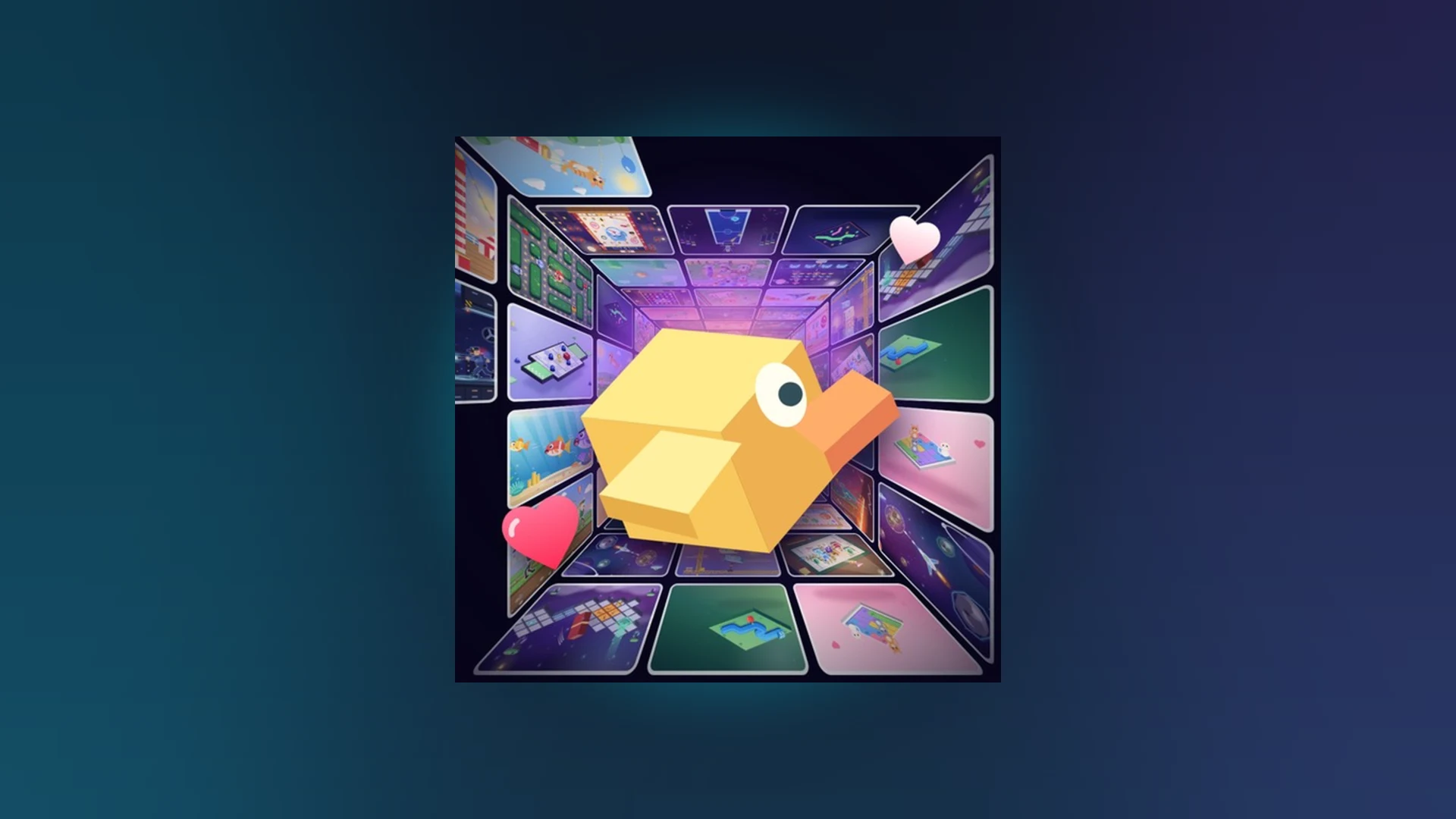
- Scroll a Game is a fast-paced Roblox minigame discovery experience built around scrolling and swiping.
- Core loop: read the on-screen prompt, perform the required scroll or swipe, and complete short arcade rounds.
- Best first move: read each prompt fully before moving, then use short, controlled inputs.
- Score tip: consistency beats raw speed, and fewer mistakes means longer runs.
- Cross-platform: playable on mobile, tablet, PC, and controller with platform-specific inputs.
What Scroll a Game Is and How It Works
Scroll a Game is a lightweight, arcade-style experience on Roblox in the Party & Casual / Minigame category. Its central idea is simple: you scroll or swipe through a nonstop feed of playable minigames, jump into each one instantly, and compete for high scores on weekly, monthly, and all-time leaderboards.
Each round is short and reaction-based. The game shows you a prompt that explains the direction, timing, or target of the interaction, and your job is to respond with the correct input before the round moves on. Because the activities change quickly, the skill lies in adapting fast rather than memorizing one mode.
You can find the game by searching for "Scroll a Game" on Roblox Discover, and it has appeared in Roblox's popular experiences charts, which you can review on the official charts page.
Instant Minigames
- Scroll into a new game within seconds
- Short, snackable arcade rounds
- Endless variety in one experience
Score Competition
- Weekly, monthly, and all-time leaderboards
- Compare runs with friends
- Follow and save favorite minigames
Reaction Gameplay
- Read prompts, then act
- Direction, timing, and accuracy tests
- Rewards controlled, deliberate inputs
Do not chase speed in your first few rounds. Watch the full prompt before moving, because understanding the instruction is more valuable than reacting instantly during your first run.
Step-by-Step: How to Play Scroll a Game
Follow these steps to go from installing Roblox to completing your first round successfully.
Install and open Roblox
Install Roblox on your supported device and sign in to your account. If you need help with installation, the official Roblox support article covers setup for all platforms.
Join the game
Open the Scroll a Game experience page on Roblox and select Play. Allow the loading process to finish completely before touching any controls.
Read the on-screen prompt
Each activity displays instructions explaining the direction, timing, or target of the interaction. Check the prompt carefully before making your first move.
Use the scroll or swipe control
Respond with the required input: mouse wheel, trackpad, touchscreen swipe, or controller movement, depending on your device. Use short, controlled motions when accuracy matters.
Complete the round and review the result
Keep responding to prompts until the round ends, then check the result screen. Note which prompt types caused mistakes so you can adjust next time.
Never interact with the screen while the session is still loading. Rushed taps during loading are a common cause of input issues in the first round.
Minigame Types and How to Win Them
The activities in Scroll a Game fall into recognizable patterns. Identifying the type quickly tells you which input style to use before the round even starts.
| Minigame Type | Objective | Input Style | Winning Tip |
|---|---|---|---|
| Direction | Match the movement shown by the prompt | Scroll, swipe, or drag in the indicated direction | Watch the full prompt before moving |
| Timing | Act when the activity signals readiness | Short, deliberate single inputs | Prioritize timing over speed |
| Accuracy | Complete the interaction without overshooting | Smaller, fine-tuned adjustments | Reduce movement length for precision |
| Endurance | Keep completing prompts without losing focus | Steady, repeatable input pattern | Use a rhythm and reset focus after each action |
Before inputting anything, classify the round into one of the four types above. This single habit noticeably improves your clear rate across a full session.
High Score and Revive Strategy
High scores in Scroll a Game come from completing more prompts successfully and avoiding unnecessary errors. Build your run on accuracy first, then layer in reaction speed and consistency.
| Focus Area | Recommended Action | Common Mistake | Score Benefit |
|---|---|---|---|
| Accuracy | Short, controlled movements matching the prompt | Scrolling too far or changing direction without instruction | Fewer failed interactions |
| Reaction speed | Read the prompt quickly and act without hesitation | Acting before the instruction is fully visible | Better timing, fewer early errors |
| Consistency | Repeat the same reliable movement pattern | Changing technique after one result | Stable long-run performance |
| Focus | Watch only the current prompt | Extra inputs between actions | Lower chance of accidental errors |
| Practice | Identify your weakest prompt type | Score-chasing before learning controls | Faster improvement |
When a run ends, the Revive option may let you continue. Treat it as a risk-reward decision, not an automatic pick.
Confirm Revive is available
Check whether the Revive prompt is active on the end-of-run screen. If not, start a fresh run through the normal restart flow.
Compare with your best score
Revive is most worthwhile when your current run is close to or above your personal best. A far-below-average run usually favors restarting.
Judge run momentum
A single recoverable mistake in an otherwise stable run justifies reviving; repeated misses do not.
Decide: preserve or refresh
Choose Revive when preserving progress matters most, and a fresh start when the attempt is not competitive.
After every session, note the prompt type that caused your most mistakes. Targeting one weakness at a time improves leaderboard results faster than playing more random rounds.
High Score Checklist:
- Read every prompt fully before moving
- Use short controlled inputs on accuracy rounds
- Keep a steady rhythm on endurance rounds
- Revive only when the run is near your best
- Track your weakest prompt type each session
Controls and Troubleshooting by Platform
Input behavior differs between touchscreens, keyboards, mice, and controllers. If an action does not respond, first verify that the game window is focused and the expected input method is active.
| Platform | Entry | Basic Controls | Common Fix |
|---|---|---|---|
| Mobile phone | Roblox app, search Scroll a Game, press Play | Tap on-screen buttons, swipe on movement prompts | Release held touches, tap the window, rejoin if needed |
| Tablet | Launch Roblox, open the experience page, Play | Same touch inputs with larger screen space | Avoid swiping over system navigation areas |
| Computer | Roblox app or browser, press Play | Keyboard and mouse prompts, click window first for keyboard input | Click back into the window; check chat is not focused |
| Controller | Supported console or connected controller | Follow on-screen button prompts, right stick camera | Reconnect or reassign the controller, then rejoin |
Always start with the least disruptive fix: refocus the game window, rejoin the server, and confirm Roblox is updated. Only investigate account or device issues if the problem persists.
| Problem | Likely Cause | Quickest Fix |
|---|---|---|
| Cannot enter the game | Outdated app or stalled server | Restart Roblox, reopen the official page, try a new server |
| Inputs do not respond | Window lost focus or overlay capturing input | Tap or click inside the game window, release held inputs |
| Leaderboard not refreshed | Result still processing | Wait briefly, rejoin, confirm the score recorded before closing |
| Revive unavailable | Run ended outside the revive point | Start a new run and reach the point where Revive is offered |
FAQ
Q: How do I play Scroll a Game for the first time?
Install Roblox, search for Scroll a Game on Roblox Discover, press Play, then follow the on-screen prompts using scroll, swipe, or click inputs. Read each instruction fully before moving to avoid early mistakes.
Q: Is Scroll a Game free to play?
Like most Roblox experiences, Scroll a Game is accessed through the Roblox platform, which you can join at no cost. Any optional in-experience purchases would be shown on the official game page.
Q: How do I improve my Scroll a Game score?
Focus on accuracy first with short controlled movements, then build reaction speed and consistency. Avoid changing technique after a single result, and track which prompt type causes your most mistakes each session.
Q: What should I do if the controls stop responding?
Tap or click inside the active game window to restore focus, release any held input, and make sure chat or a system overlay is not capturing your input. If controls remain unresponsive, leave and rejoin the server.